


My Verizon
4.6344.38K Reviews
App Specs
- Version
- 22.0.4
- Updated On
- License
- Free
- Downloads
- 100,000,000+
- Developer
- Verizon Consumer Group
- Categories
- Lifestyle
- Platform
- Android, iOS
Screenshots
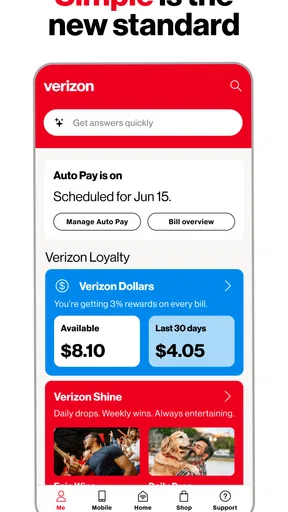
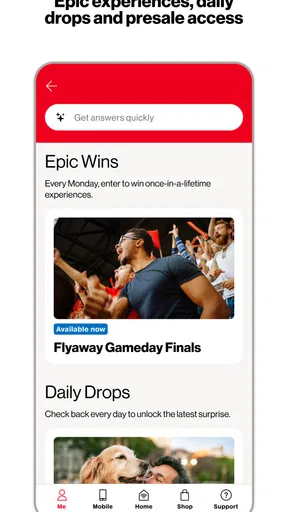
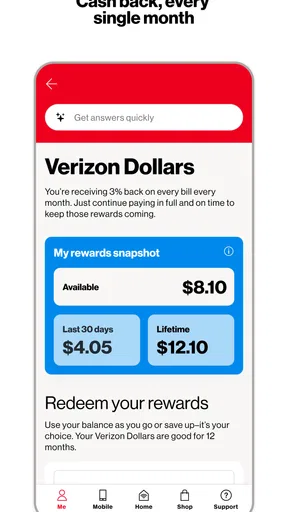
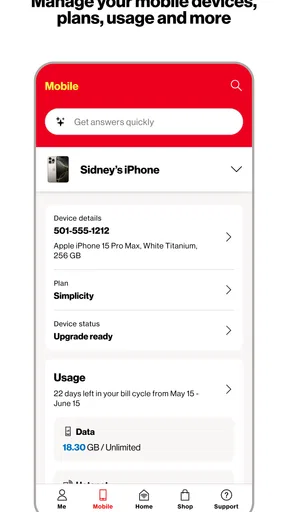
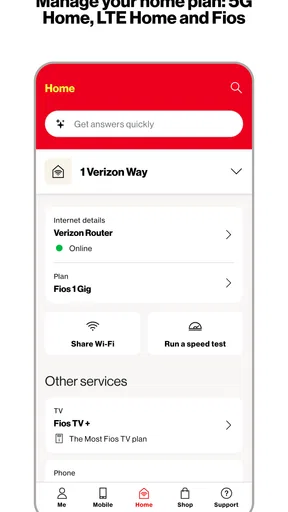
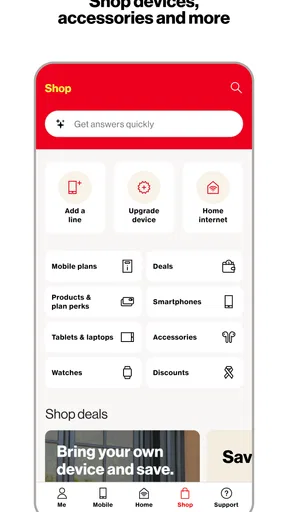
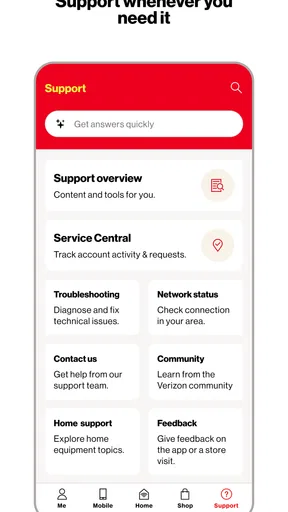
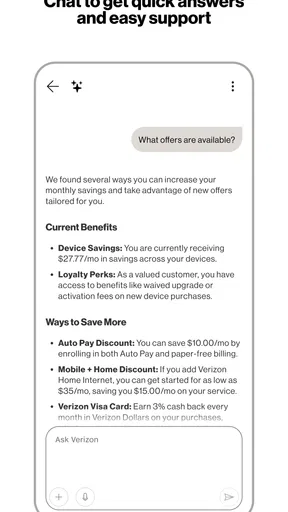
 Analysis by AppCompare
When I opened My Verizon, I approached it less like a traditional lifestyle app and more like a control panel for an ongoing service relationship. That distinction matters. It is useful when I need to understand what is happening with my Verizon account, make a change, or find account-related information without moving between unrelated channels. It is not designed to replace every phone setting or every customer-support conversation, but it can bring many Verizon tasks into one mobile starting point.
The app is free, comes from Verizon Consumer Group, and is available for devices running Android 7.0 or later. Its Mature 17+ content rating is worth noticing before installing, particularly on a shared family device. With more than 100 million installs, an average rating of 4.6 from around 1.3 million ratings, and roughly 344,000 reviews, it is clearly a well-established app rather than a small companion tool. The current version is 22.0.4.
From an account question to a practical result
I find the app most useful when I arrive with a concrete account question, but a good result also depends on knowing when to stop tapping and choose another route. In the next section, I look at how that shift can help when an ordinary check turns into a more involved task.
Guides and Analysis on My Verizon
Starting with the problem, not the app
The best way to use this app is to begin with a specific question. I might want to check an account charge, review the services connected to my Verizon relationship, manage a device, or find the next action required from me. That is a much better starting condition than opening it simply to browse. The app makes the most sense when it reduces a short administrative task that would otherwise require a browser, a phone call, or a search through old messages.
For example, imagine I am leaving home for a weekend and want to make sure my phone service and account details are in order. I open the app, sign in, review the account area, and look for the relevant service or device information. If I find what I need, the outcome is simple: I leave with fewer unanswered questions and without having to contact support for something routine. That is the kind of small, practical win the app is built to provide.
I also found that the app works best when I already know whether I am dealing with an account issue, a device issue, or a service-management issue. Those categories can overlap in real life, but separating them mentally makes navigation easier. A problem that sounds like “my phone is not working” may actually require a device check, while “why did this change?” is more likely an account or billing question. Starting with the right area prevents unnecessary tapping.
Moving through the main workflow
The first step is signing in and identifying the account context. This is important for households with several lines or devices. Before changing anything, I would check that the displayed account and the selected device are the ones I intend to manage. A small moment of attention here can prevent the most frustrating kind of mistake: making a legitimate change in the wrong place.
Worth Reading Before You Choose

Basketball Stars: Multiplayer Is Fast, but Can It Recover When Matches Go Wrong?

WEBTOON Turns Phone Updates Into a Better Reading Routine

Link to Windows Runs on Shared Habits, Not Social Feeds

How Alibaba.com Dominates the B2B Marketplace

Metro's Quiet Rise: Redefining Mobile Communication

Harnessing Ecosystem Power with Phone Tracker by Number
Next, I use the app as a guided path rather than as a general information board. I look for the section connected to my goal, read the labels carefully, and follow the available prompts in order. This approach is especially helpful when I am checking a service status or reviewing account information because it keeps the task connected to the account instead of sending me into unrelated phone menus.
One useful habit is to pause before confirming a change. Mobile interfaces encourage quick taps, especially when I am standing in a store, commuting, or trying to solve a problem between other tasks. I would review the selected line, device, and requested action one more time. That extra check is a practical safeguard, not a criticism of this particular app; account-management actions deserve more care than ordinary browsing.
Another worthwhile workflow is to use the app before contacting Verizon. I can first gather the basic account context and identify the exact issue. If I still need help, I am better prepared to explain what I already checked. That can make a support handoff more efficient because I am not starting with a vague complaint. The app may not solve every problem, but it can help turn “something is wrong” into a clearer question.
How the handoffs feel in everyday use
The most important handoff is between the app and the person using it. The app presents account information, but I still need to interpret it. A displayed charge, device entry, or service detail may answer my question immediately, or it may point toward a more complicated issue. I would not treat every screen as a final explanation; I would use it as a checkpoint in the larger process.
There is also a handoff between the app and the device itself. My Verizon can help me manage Verizon-related matters, but it is not the same as the phone’s built-in settings. If I need to adjust a notification, change a display option, or troubleshoot a general operating-system behavior, I would go to the device settings instead. Keeping those roles separate saves time. The app is for the Verizon relationship; the phone settings are for the phone as a piece of hardware and software.
A further handoff happens when more than one person uses the account. The account holder may be managing services for another family member, while the person holding the phone is the one experiencing the issue. In that situation, the app can be a useful coordination point, but it does not remove the need to communicate clearly. I would confirm which line is affected and share only the necessary account information rather than assuming everyone is looking at the same screen.
This is where the app’s lifestyle classification feels reasonable. It is not entertainment, productivity software, or a general communication platform. It fits into the ordinary routines surrounding connectivity: checking, organizing, and maintaining a mobile service relationship. That may sound unglamorous, but it is exactly why a focused account app can be valuable when it is well organized.
What a successful result looks like
A successful session is usually short. I open the app with a defined task, locate the correct account or device, review the relevant information, complete the available action, and close it. I do not need to remain inside the app once the question is answered. In my experience, that is a sign of a useful utility: it supports the task without demanding attention after the task is finished.
The strongest result is confidence. If I can verify that I am looking at the correct service or account detail, I can decide whether to wait, make a change, or seek help. That confidence is more valuable than a crowded collection of features. A good account-management app should reduce uncertainty, and My Verizon generally serves that purpose when the issue falls within its intended scope.
It can also make recurring responsibilities easier to remember. Rather than searching through a browser bookmark or trying to reconstruct where I previously found an account option, I have a dedicated place to begin. The benefit is not that every task becomes effortless. The benefit is that the starting point stays consistent.
For a family account, the result can be even more practical. One person can use the account view to understand the overall setup, while individual device concerns can be discussed separately. This is helpful when the household has several lines and the problem is not obvious at first. The app does not replace good organization, but it gives that organization a central mobile home.
Where the flow breaks down
The main weakness is that account management is inherently more complicated than a simple app screen suggests. A polished mobile interface cannot eliminate service rules, account relationships, device differences, or the need for verification. When a task crosses from routine management into an unusual account problem, the flow may become less direct. I may reach a point where I need additional assistance rather than another menu.
That is also why I would not recommend this as the only tool for troubleshooting a phone. If the handset is frozen, unable to connect, or behaving strangely at the operating-system level, I would first use the phone’s own restart, settings, and diagnostic options where appropriate. My Verizon is more useful for the Verizon side of the situation. Expecting it to repair every technical problem would lead to disappointment.
Navigation can also feel less satisfying when I arrive without a clear goal. Account apps often contain several related areas, and browsing through them can create more questions than answers. I prefer to decide what I need before opening the app and then leave once that task is complete. That approach reduces the sense of wandering and makes the experience feel more efficient.
Another limitation is that mobile convenience can encourage impulsive decisions. A larger screen may make complicated information easier to compare, especially when I am reviewing several account details at once. For a quick check, the phone is ideal. For a careful review involving many lines or a complicated change, I would consider using a browser or speaking with support if the mobile view does not make the situation clear.
Who should use it and who should skip it
I would recommend My Verizon to Verizon customers who want one dependable mobile entry point for account-related tasks. It is particularly sensible for people who regularly manage more than one device, prefer handling routine matters from a phone, or want to check their account before reaching out to customer service. The free price also makes it an easy companion to try if Verizon is already the service provider.
It is less compelling for someone who is not a Verizon customer, rarely manages account details, or prefers doing all service administration on a desktop. It is also not the right first choice for someone looking for a general phone-maintenance tool. The app’s value comes from its connection to Verizon services, not from replacing the broader settings and support tools already built into a phone.
People sharing devices should pay attention to the Mature 17+ rating and to account privacy in everyday use. I would avoid leaving an account-management session open on a phone that other people regularly borrow. That is a simple habit, but it matters more here than it would in a casual lifestyle app because the screens are tied to personal service information.
Practical tips for a smoother session
Open the app with one task in mind, such as checking an account detail, reviewing a device, or preparing a support question.
When several lines or devices appear, verify the selected one before reviewing information or confirming an action.
Use the app to collect context before contacting support; a precise description of what you already checked is more useful than a general complaint.
Switch to the phone’s own settings for operating-system controls and basic handset behavior rather than searching for those options inside the Verizon account app.
For complicated account decisions, slow down and review the final screen carefully instead of treating mobile convenience as a reason to rush.
These habits reveal an important trade-off. The app is strongest as a quick, repeatable starting point, not as a replacement for every other channel. It can shorten the path to an answer, but the quality of the result still depends on choosing the right account area and understanding what the information means.
My final take on the mobile account experience
My Verizon succeeds because it gives Verizon customers a consistent place to begin everyday service tasks. I like it most when I have a clear question and want to move from that question to an account check or a practical next step without opening a desktop browser. The experience feels most valuable in those small moments when I need reassurance or basic control, not when I expect the app to solve a complicated technical problem on its own.
The app’s large user base and strong average rating suggest that many people find this central account approach worthwhile, and I can understand why. Its real strength is not excitement; it is convenience through consolidation. The developer, Verizon Consumer Group, has made a tool for the administrative side of staying connected, and that narrow purpose is a benefit when expectations are realistic.
My recommendation is straightforward: install it if you are a Verizon customer who wants account management close at hand, but keep your phone settings and other support options in your toolkit. Used that way, it can make routine checks less scattered and help turn an unclear service concern into an organized next step. It is a practical companion rather than an all-purpose troubleshooter, and that is enough to make it worthwhile for the right user.
Pros
- Manage multiple Verizon lines from one account.
- View data usage and billing details in real time.
- Schedule payments and enable Auto Pay easily.
- Run basic troubleshooting for eligible devices.
- Find upgrade options and available Verizon offers.
Cons
- Some features require an active Verizon account.
- The app may promote add-ons and plan upgrades frequently.
- Certain support issues still require contacting an agent.
- Performance can vary after major app updates.
- Account changes may require extra verification steps.
FAQs for My Verizon
What is My Verizon, and what can I do with the app?
My Verizon is Verizon’s official account-management app for mobile, home internet, and other eligible Verizon services. After signing in, you can review your plan, monitor data usage, check bills, make payments, manage Auto Pay, upgrade or add devices, view support options, and track certain orders. The exact features available depend on your account type, location, and subscribed services.
Is My Verizon free to download and use?
The My Verizon app is generally free to download from the Google Play Store or Apple App Store, and Verizon does not normally charge a separate fee simply for using the app. However, you still need an eligible Verizon account and an internet connection. Mobile data charges may apply when using the app over cellular data, and payments, upgrades, or purchases made through Verizon are billed according to your account terms.
Can I pay my Verizon bill and manage Auto Pay through My Verizon?
Yes. My Verizon usually allows customers to view their current balance, inspect billing details, make one-time payments, schedule payments, and enroll in or manage Auto Pay. You can typically use an eligible bank account, debit card, or credit card, although available payment methods may vary. Always review the final payment amount and date before confirming, especially when changing Auto Pay settings.
Is My Verizon safe for managing my account and personal information?
My Verizon is Verizon’s official application and includes account authentication and security features designed to protect billing, device, and personal information. You should download it only from an official app store, keep your phone’s operating system updated, and avoid sharing verification codes or passwords. For additional protection, use a strong unique password and enable available security or biometric sign-in options.
Why can’t I sign in or see all of my Verizon services in the app?
Login problems can result from an incorrect password, temporary service issues, an outdated app, an unstable connection, or account-security verification. Some users may also see limited features because their Verizon service is not eligible for a particular function or because they are signed into the wrong account profile. Try updating the app, resetting your password, switching networks, and contacting Verizon support if the issue continues.


